leod

Well-known member
Joined
Jun 7, 2003
Messages
222
Reaction score
0
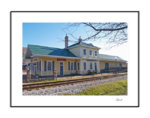
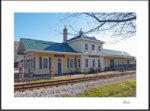
This was inspired by clutchkillers fine tutorial and although I did not do a tutorial, I did keep a record of the steps used and if any one wants it I will share it.

The 2'nd pic ended up with a wide white area around the black that IMO should have been the final edge, I guess I missed a step. In the 1'st pic I tried to remove the white area by resizing, which really isn’t the way to go. Any comments and suggestions are welcome and will be appreciated.

Wooops, loaded the pics backwards
<
 

Attachments

  • 2007_Jan_31_downtown_conyers_003A1f_copy_rs.jpg
    2007_Jan_31_downtown_conyers_003A1f_copy_rs.jpg
    145 KB · Views: 0
  • 2007_Jan_31_downtown_conyers_003A1f2_copy_c2.jpg
    2007_Jan_31_downtown_conyers_003A1f2_copy_c2.jpg
    81.7 KB · Views: 12

Hideandwatch

Well-known member
Joined
Jul 26, 2002
Messages
1,306
Reaction score
1
nice framing work. I cropped on one of mine to rid the white at the outer edges, I didnt like the outcome. This is cool (tutorials) glad that we're sharing and learning.
 

clutchkiller

Well-known member
Joined
Dec 6, 2003
Messages
2,777
Reaction score
0
That looks great Leod! Now if we can only convince Jesse to change the color of the background on this site to white, lol. If you want to remove the white color on the out side of your frame, try going to the Image menu and click on Trim, make sure Top Left Pixel Color is checked and press Okay. This will remove the white color and keep your frame. If you have a shadow on the outside of your frame, it will remove the white color up to where the shadow and white blend together.

I really like the train station BTW, great angle! It might look great as a B&W, duo-tone, tri-tone, or quad-tone... there is so much you can do with PS... I love it!
 

Latest Posts

QRCode

QR Code
Top Bottom